
IPTV Smarters Failed to Authorize?
BLUF (Bottom Line Up Front): The “Failed to Authorize” error in IPTV Smarters is rarely a sign of a broken app. It is almost always a “handshake failure” caused by incorrect login credentials, a typo in the server URL, or your ISP blocking the connection. Fixing it usually requires a simple data check or a DNS adjustment.
Nothing kills a viewing session faster than the dreaded “failed to authorize iptv smarters” message appearing right as you’re about to start a game or a movie. This error is essentially a communication breakdown; the app is knocking on the server’s door, but the server doesn’t recognize the key you’re using or refuses to open the door entirely.
Whether you are using an Amazon Firestick 4K Max or an Nvidia Shield, this guide will walk you through the professional steps to restore your access and optimize your setup for true UHD streaming.
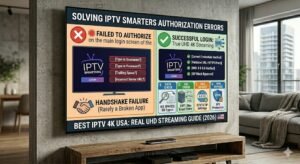
IPTV Smarters Failed to Authorize
Before diving into the fixes, it is important to understand what is happening behind the scenes. Authorization isn’t just about your password; it’s a multi-step validation process:
If any of these steps fail—due to a typo, a blocked port, or a server outage—you get the “Failed to Authorize” error.
It sounds basic, but 80% of authorization failures stem from manual entry errors.
User123 is not the same as user123.@, #, or ! are entered exactly as provided by your provider.The URL is the most critical piece of the puzzle. A single misplaced character will trigger a failure.
http:// while others require https://. Try switching between the two if one fails.:8080 or :25461) is attached to the end of the URL without a space. Example: http://provider-dns.com:8080.// at the end of your URL unless specifically instructed.Many US-based ISPs (like Comcast or AT&T) use DNS filtering to block known IPTV server addresses. When this happens, the app can’t find the server to authorize your account.
The Fix: Switch to Google DNS
8.8.8.8.8.8.4.4.If DNS changes don’t work, your ISP may be using Deep Packet Inspection (DPI) to throttle or block IPTV traffic. A high-quality VPN encrypts your data, masking your streaming activity from the ISP and allowing the authorization handshake to complete without interference.
Depending on your hardware, there are specific “housekeeping” tasks that can resolve authorization glitches.
Settings > Applications > Manage Installed Applications > IPTV Smarters > Clear Cache.Force Stop option to kill all background processes before restarting the app.| Symptom | Likely Cause | Quickest Fix |
|---|---|---|
| Failed to Authorize | Wrong URL/DNS/Typo | Verify URL $\rightarrow$ Change DNS to 8.8.8.8 |
| Buffering in 4K | Slow WiFi / Throttling | Use Ethernet (25Mbps+) / Enable VPN |
| Playlist Empty | Expired Subscription | Contact Provider / Check Billing |
| App Crashes on Login | Corrupt Cache | Clear App Cache & Force Stop |
| Constant Re-authorization | Unstable Connection | Switch from Wi-Fi to Hardwired Ethernet |
If you have verified your URL, changed your DNS, and tried a VPN, but still see “Failed to Authorize,” the issue is likely on the server side.
If you are tired of constant authorization errors, buffering during live sports, and unreliable “cheap” services, it’s time to move to a professional infrastructure.
Most budget providers use over-saturated servers that struggle to handle UHD streams, leading to the very errors you’re facing now. At iptv-usatv.com, we prioritize stability and raw power.
| Feature | Budget/Free Providers | iptv-usatv.com Premium |
|---|---|---|
| Channel Count | 1,000 – 5,000 (Many broken) | 20,000+ Active Channels |
| Video Quality | Upscaled 720p/1080p | Native 4K UHD Streaming |
| Uptime | Frequent “Server Down” errors | 99.9% Server Stability |
| VOD Library | Limited / Slow Loading | Massive 4K VOD Collection |
| Support | Slow Email / None | Dedicated WhatsApp Setup Support |
Stop fighting with your app and start enjoying your content. For a seamless experience with no buffering and instant authorization, upgrade today.
[CTA] Start a Free Trial or Contact Support via WhatsApp for instant setup assistance!
If IPTV Smarters continues to be unstable despite a premium service, consider switching your player. While Smarters is popular, these alternatives often offer better stability:
Why does IPTV say authorization failed? This usually happens because the server cannot validate your credentials. This is typically caused by a typo in the username/password, an incorrect server URL, or an ISP block preventing the app from reaching the server.
Why won’t my IPTV Smarters Pro work? If the app won’t work, it could be due to an expired subscription, an outdated app version, or network restrictions. Try clearing the app cache and ensuring your internet speed is at least 25 Mbps for high-definition content.
Why does my IPTV say login failed? Login failed is almost always a credential issue. Double-check that you haven’t included any extra spaces when copying your details and ensure that you are using the correct HTTP/HTTPS prefix in your server URL.
Why am I unable to connect to IPTV? Connection issues are often network-related. Your ISP may be blocking the IPTV server. Switching your DNS to Google DNS (8.8.8.8) or using a VPN usually resolves this connection barrier.